Recover Corrupt SQL Database with SQL Recovery Tool
SysTools SQL Recovery tool is powerful tool that help users to recover SQL database from corrupt MDF file. Recover corrupt SQL database with SQL database recovery tool. MDF file recovery tool makes helps users to recover corrupt SQL database as it is equipped with rich graphic components that well instruct SQL database recovery steps as it has undergone prolong testing with many experts.
SQL data recovery tool firstly scan & examine your corrupt or damaged MDF file, then all the information that can be recovered using SysTools SQL Recovery is previewed on screen and with the use of advanced technology software easily restores all the information from MDF file.
Here are its Simple steps which helps you to understand the steps to recover corrupt SQL database, recover SQL database with SysTools SQL Recovery. Follow these steps and successfully recover SQl database of MS SQL server.
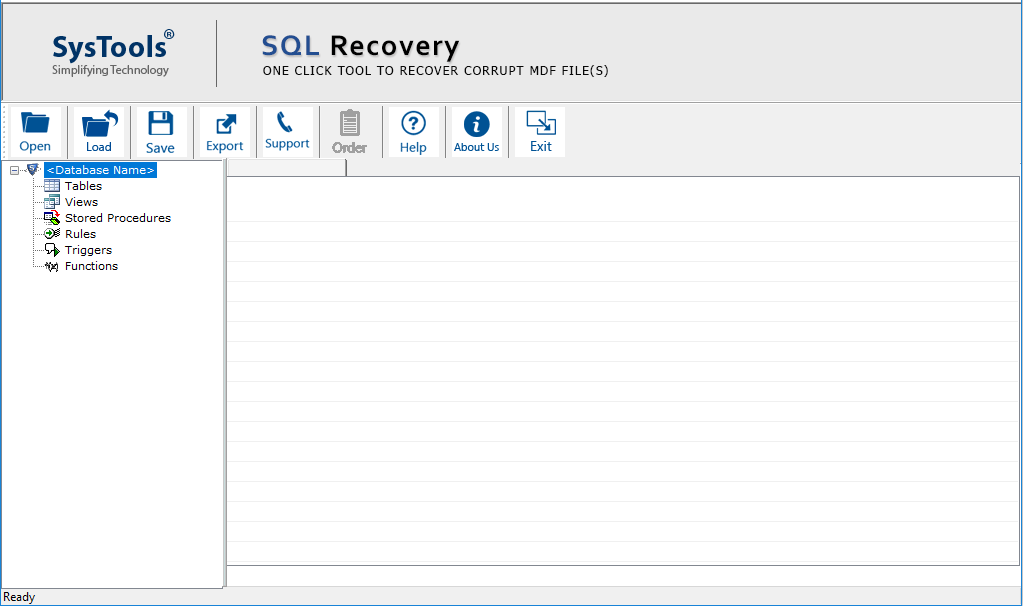
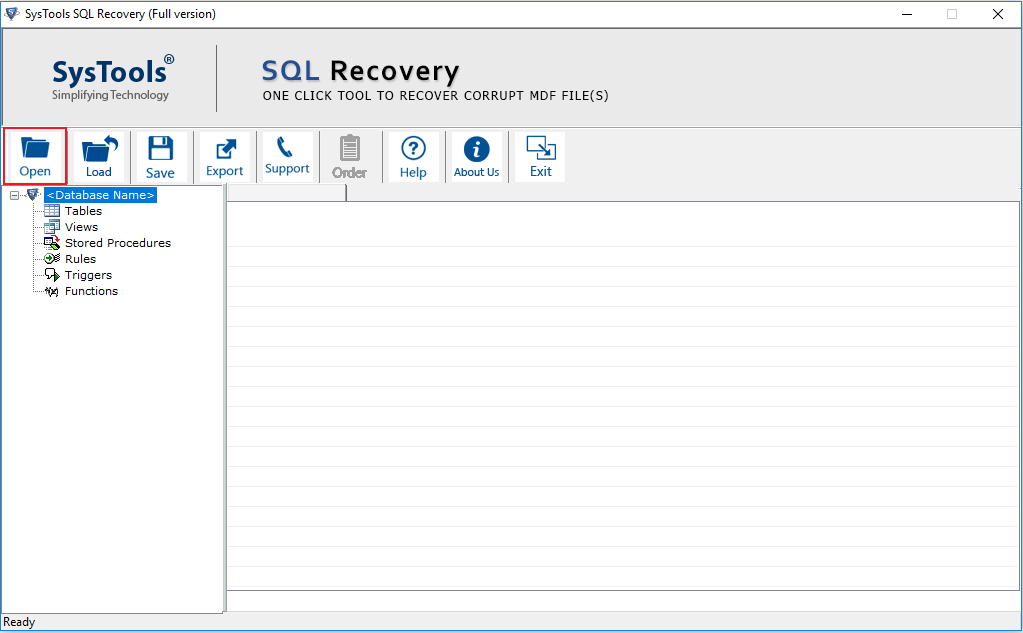
- Open SysTools SQL Recovery . Go to Start menu » Programs » SysTools SQL Recovery » SysTools SQL Recovery. Software will display the following screen:

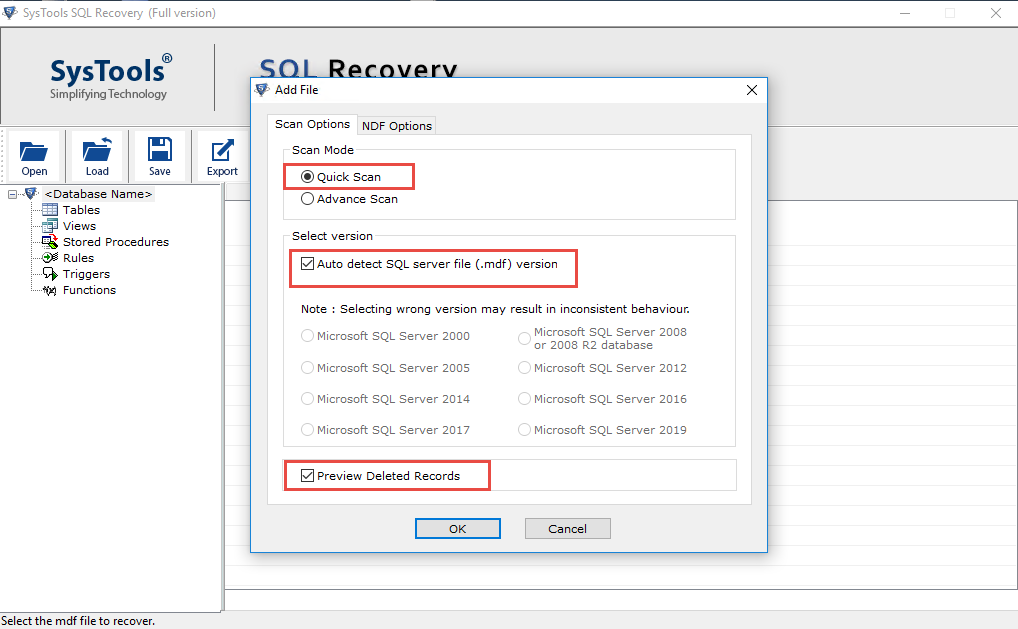
- Click on Browse button, to select the MDF file. Then software will display following screen:
- Then choose the corrupt or damaged MDF file and click on Open button.
- After this, users can see location path of the selected MDF file as follows:

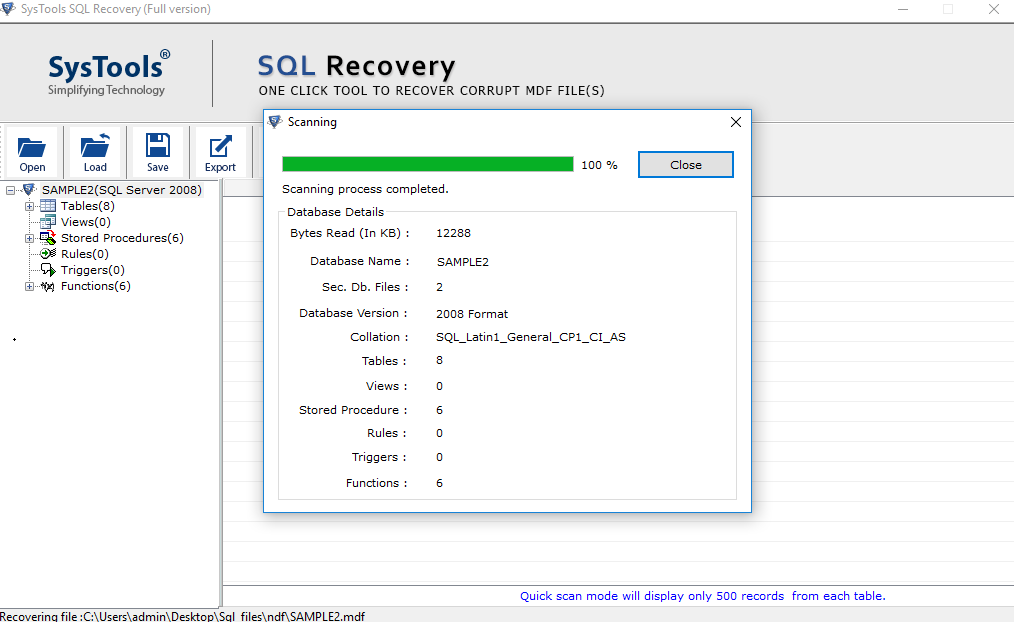
- To recover MDF file, click on Recover button. After this, software will start the recovery process as follows:

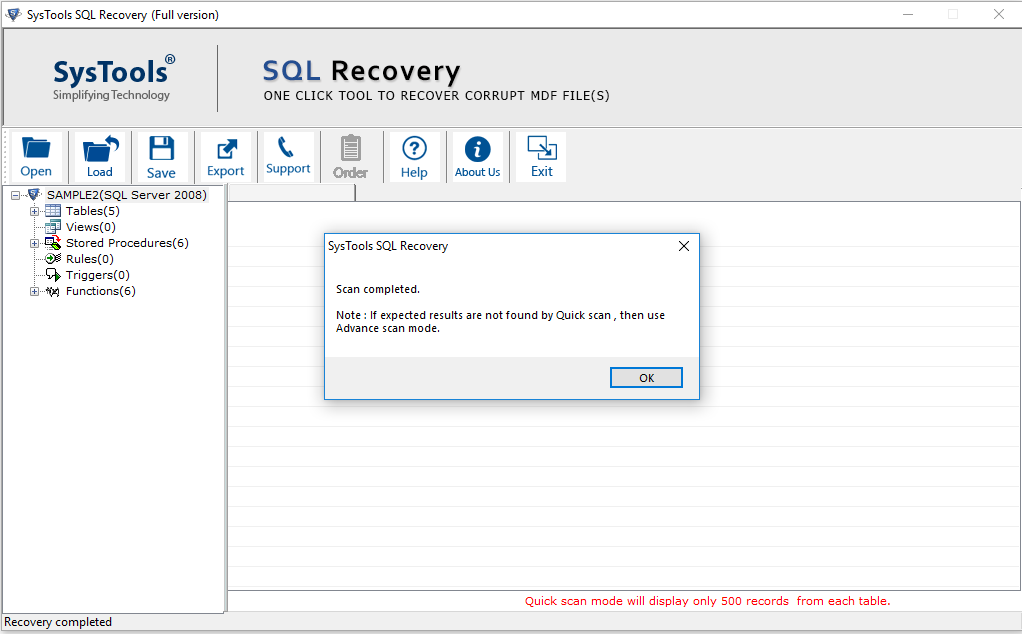
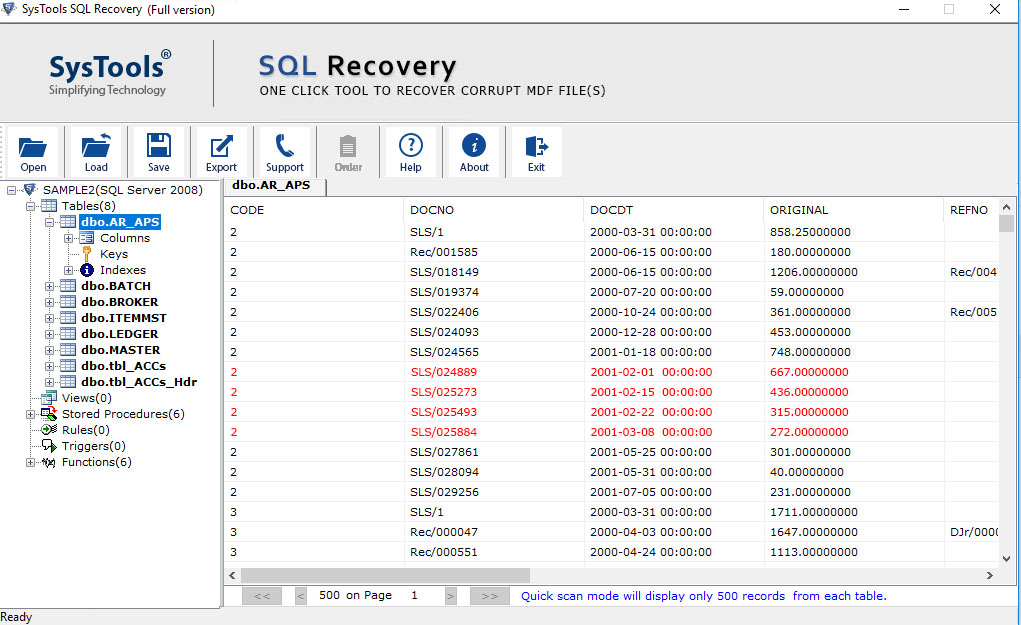
- Then users can preview the repaired MDF file with all of its components like data, tables, views, stored procedures as shown below:

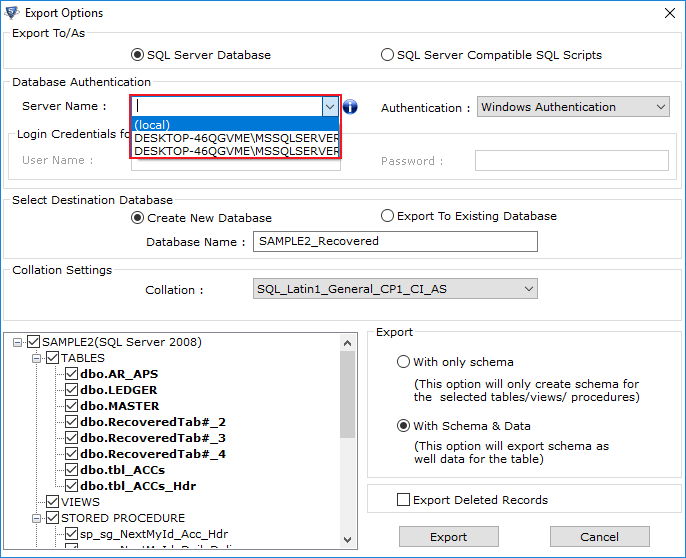
- After previewing the content of the repaired MDF file, click on Export button (exactly at the bottom corner of the window) to save the repaired MDF file. Then software will display following screen:

Then choose the Saving Option.
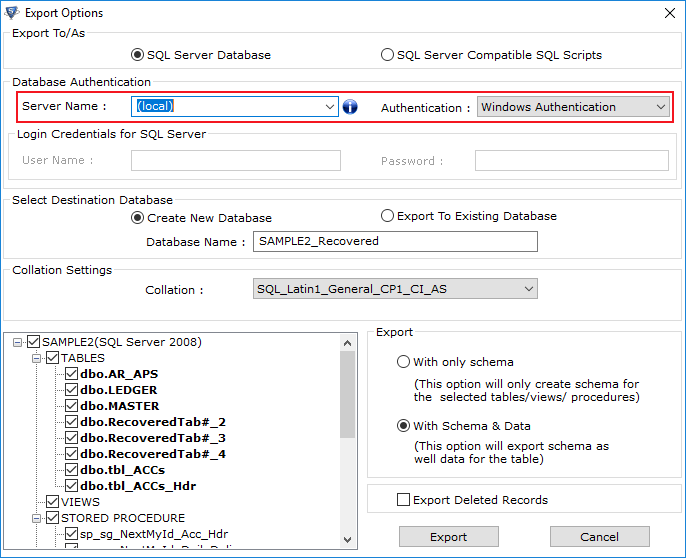
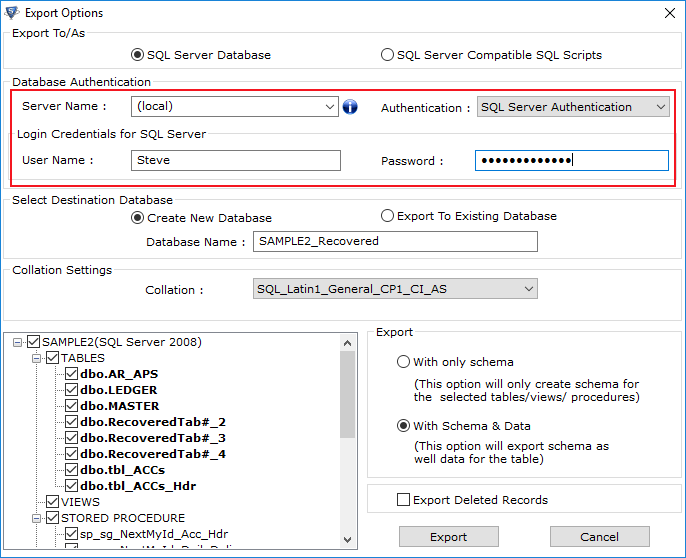
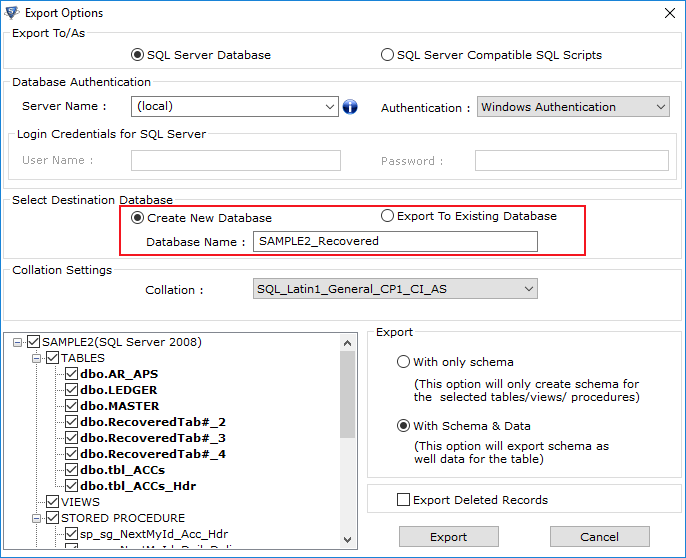
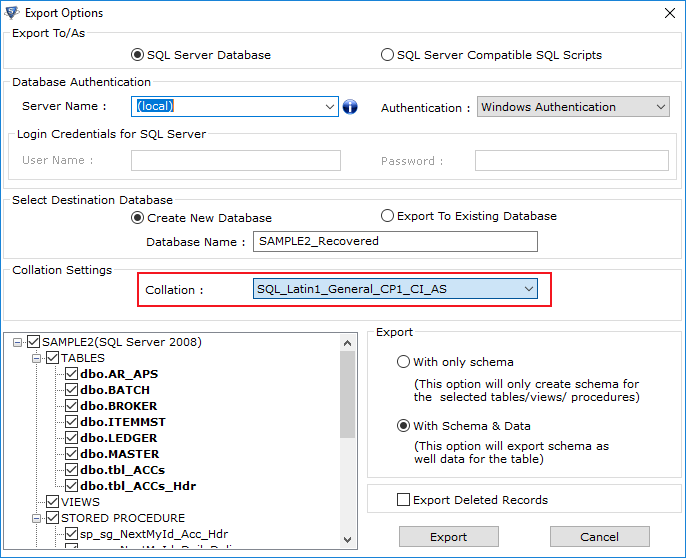
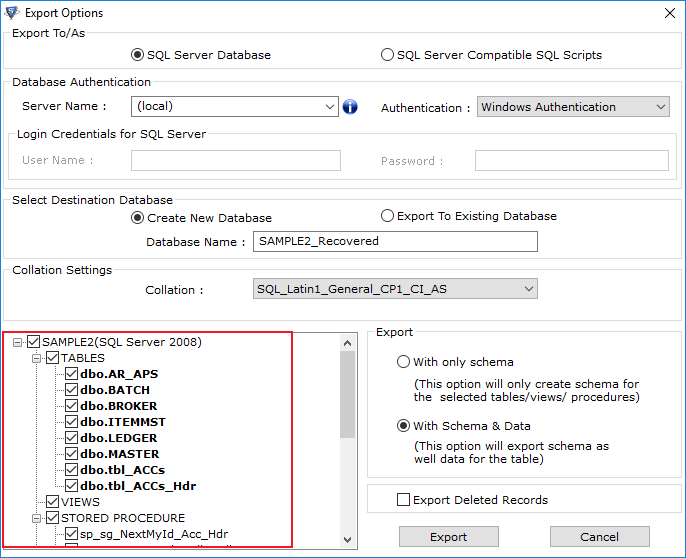
- SQL Server Database : If users will choose SQL Server Database, then software will save or import the repaired MDF file in existing SQL server database. At this users will need to provide all the database credentials such as: Server Name, Database Name, Username, Password. Then select the tables, views procedure to be saved from the left-bottom panel and finally click on Export/Save button.
- SQL Server Compatible SQL Scripts : If users will choose this option, then software will save all sQL scripts in a specific folder. At this users will need to select the tables, views procedure to be saved from the left-bottom pane and finally click on Export/Save button.
- After choosing the Export To/As and Export option, you have to click on the Export/Save button for saving the recovered data.
- After clicking on the Export/Save button, software will ask you for saving path as shown below:
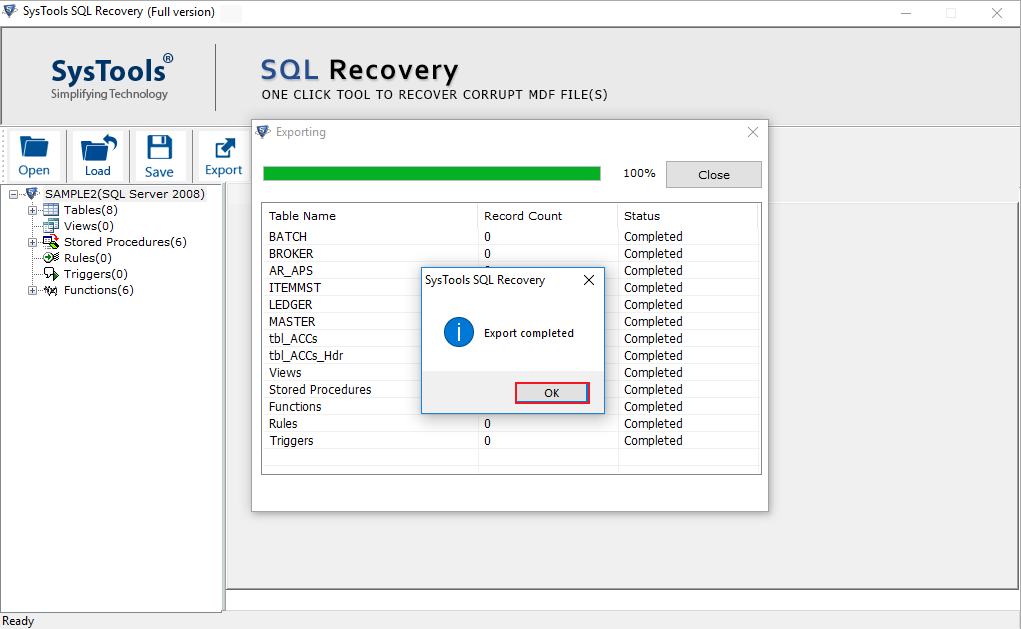
- After choosing the saving location, you should click on the OK button. After clicking on the OK button, software will start the recovery process as shown below:

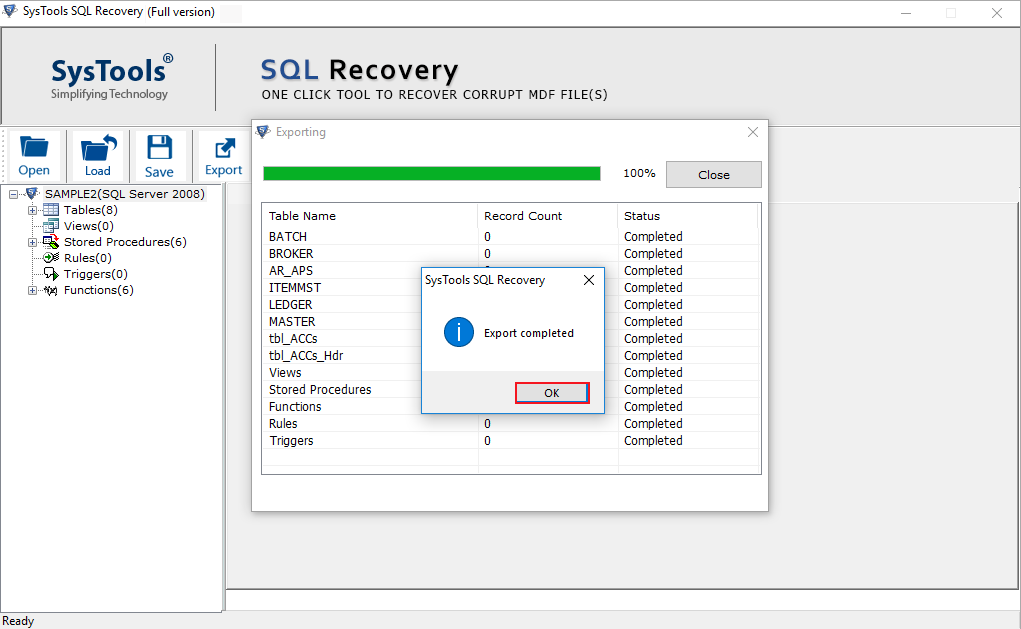
- After the completion of the recovery process, software will prompt users regarding the completion process as follows:

You should click on Close button and then navigate the saving location for finding the recovered sql script file.


We are here to provide technical support to our customers 24x7. We are here to handle all your queries related to MS SQL Recovery Tool to recover SQL database, extract SQL data & to repair corrupt SQL Database.